One Link to Rule Them All: How I Conquered Survey Chaos with Google Sheets & Apps Script

Ever been neck-deep in a project, hit a seemingly insurmountable logistical wall, and then had that "aha!" moment that makes you feel like a coding wizard (even if you're just creatively combining existing tools)? That was me recently while working on a project that required distributing 20 different Google Forms for a survey.

The challenge was significant: we needed to assign these 20 distinct forms randomly to participants. Manually juggling 20 separate links, ensuring truly random distribution, and then keeping track of responses felt like a recipe for chaos. To make matters even trickier, we only needed about 3-5 responses per form. Trying to monitor this manually across so many forms was a headache waiting to happen.

We briefly looked into sophisticated (and often paid) survey platforms, which can offer features like survey randomization. But, like many student or passion projects, our budget was firmly set at $0.00. It seemed we were stuck between a rock and a very complicated, link-filled hard place.

The Quest for a Budget-Friendly Solution

I knew there had to be a smarter, more efficient way. My research led me down the familiar and powerful rabbit hole of Google Workspace tools. Slowly, an idea began to crystallize: What if I could use the structured power of Google Sheets as a dynamic database and Google Apps Script to create a simple web application to act as a central, intelligent distributor for my forms?

The Master Plan: Google Sheets as the Brain

The core of my solution involved a single Google Sheets file with two interconnected sheets:

Sheet 1: The "BD Forms" (Form Database & Counter)

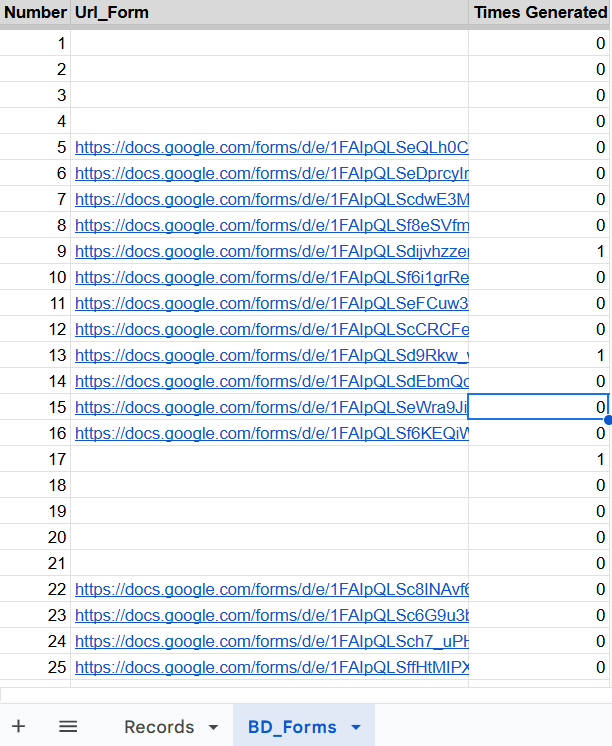
This sheet (which I named "BD Forms," short for Base de Datos or Form Database) acts as the control center for all the survey links.

Screenshot of Form Database sheet in Google Sheets
My 'BD Forms' sheet, listing survey URLs and tracking how many times each was generated.

It typically has columns like:

  • An "ID" or "Number" Column (Optional): Useful for easy referencing.
  • A "Url_Form" Column: This is where I listed all 20 of my unique Google Form links.
  • A "Times Generated" Column: This was the clever bit, automatically showing how many times each form link had been given out. To get this count to update live, I used an ArrayFormula in the first cell of this column (e.g., if "Url_Form" is in column B, and "Times Generated" is column C, the formula in C2 would be something like this):
=ArrayFormula(IF(ISBLANK(B2:B),"",COUNTIF(Records!C2:C,B2:B)))

Let's quickly break that down:

  • ArrayFormula(...): This tells Google Sheets to apply the enclosed formula to the entire column, so I didn't have to drag it down manually.
  • IF(ISBLANK(B2:B),"", ...): This checks if the corresponding cell in the "Url_Form" column (B2:B in this example) is empty. If it is (meaning no form link there), it leaves the "Times Generated" cell blank. Otherwise, it proceeds to the counting part.
  • COUNTIF(Records!C2:C,B2:B): This is the real workhorse. It counts how many times each specific form link from this sheet's "Url_Form" column (B2:B) appears in Column C of my second sheet, which I named "Records." This "Records" sheet (detailed next) logs every single time a form was assigned.

Sheet 2: The "Records" Sheet

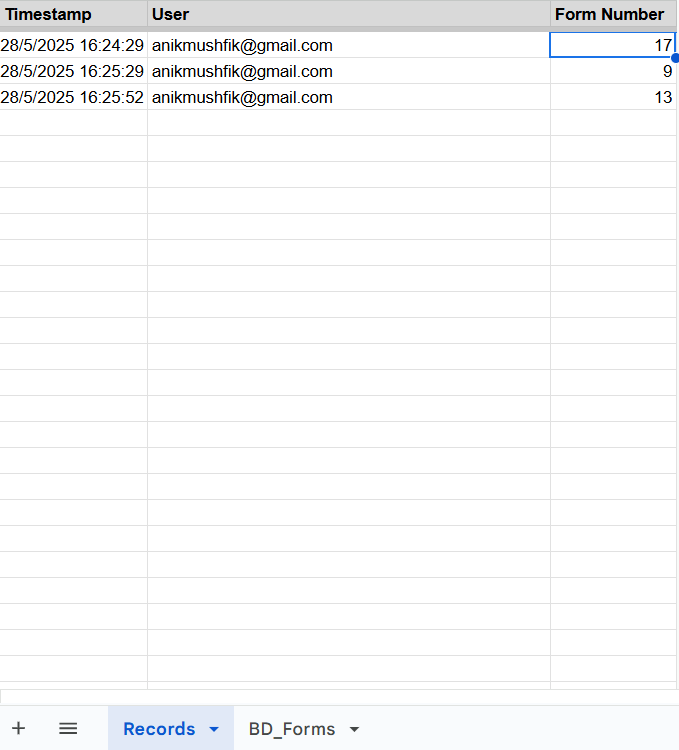
This sheet was designed as a simple, chronological log. Every time my web app handed out a form, it would automatically add a new row here, typically including:

Screenshot of Records sheet logging form assignments
The 'Records' sheet, logging each form assignment with a timestamp, user, and form number.
  • A Timestamp: Marking exactly when the form was assigned.
  • The User's Email: The script can grab this if the participant is logged into a Google account, which is great for tracking.
  • The specific Form Link or an Identifier (like Form Number/ID) that was assigned. This is the crucial piece of data our COUNTIF formula in the "BD Forms" sheet monitors to update the "Times Generated" count.

The Magic Wand: Google Apps Script & a User-Friendly Web Page

With the spreadsheet "brain" designed and ready, the next step was to bring in Google Apps Script (found under "Extensions" > "Apps Script" directly within my Google Sheet). This is where the real automation magic happens!

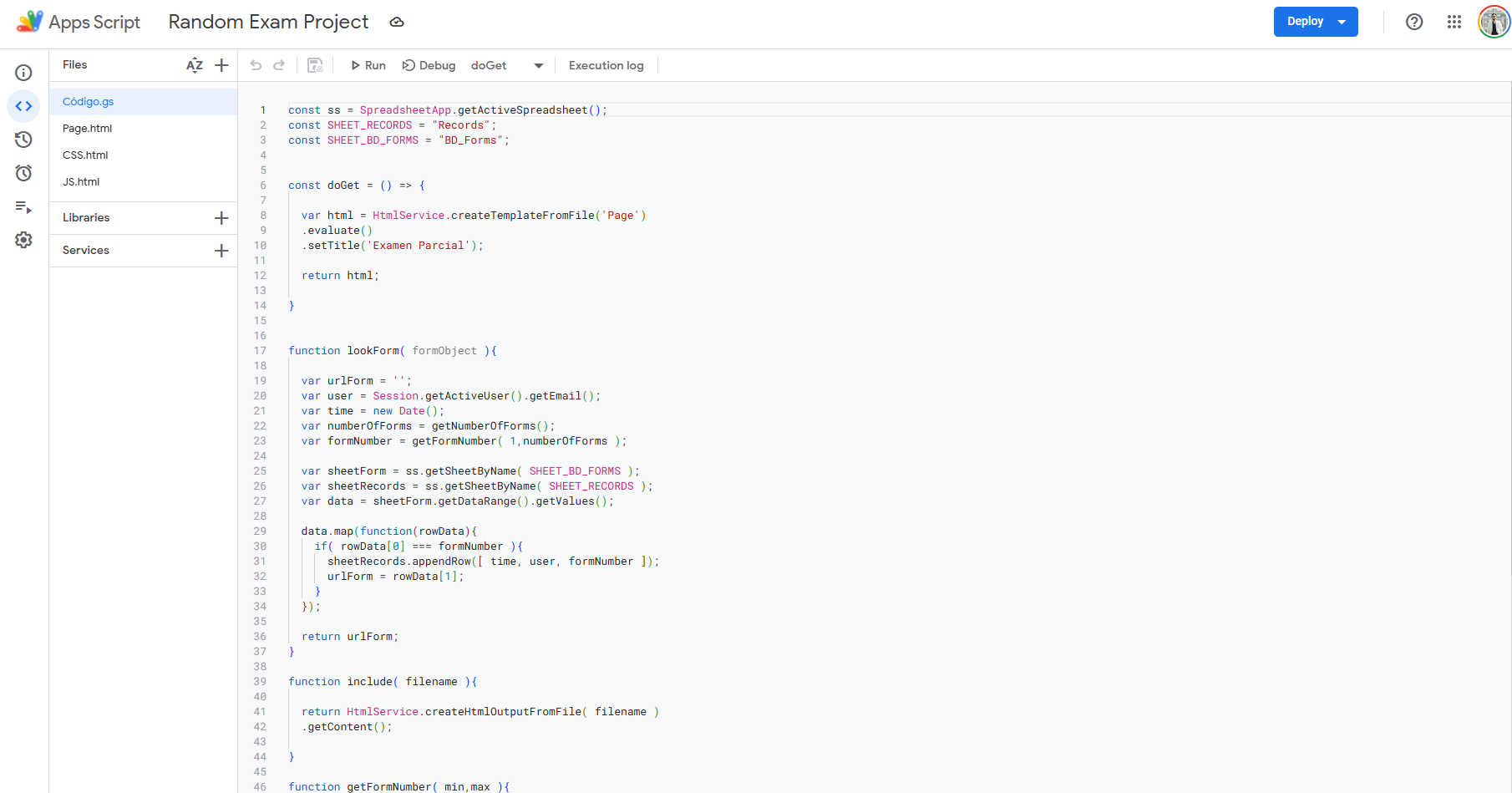
Screenshot of Google Apps Script code editor
A glimpse of the Google Apps Script code that powered the random form distribution.

My script, though involving a bit of coding, had a few key functional parts:

  • doGet(e) function: This is a standard function in Apps Script for web apps. Its primary job is to display the initial web page (which I built using HTML, often named Page.html in Apps Script projects) when someone visits the unique URL of my web app.
  • HTML, CSS, and JavaScript files (Page.html, CSS.html, JS.html): These files work together to create the user interface that participants would actually see and interact with – the webpage providing instructions and the all-important button to get their survey link.
  • A Server-Side Function (like lookForm() in my script): This is the core logic that runs on Google's servers whenever a user interacts with the web page (for example, when they click the "Generate Survey Form" button). This function was responsible for:
    • Identifying the User (Optional but useful): It could get the active user's email using Session.getActiveUser().getEmail().
    • Intelligent Form Selection (the getFormNumber() logic): This was perhaps the most crucial piece. It would:
      • Read the list of all form links and their current "Times Generated" counts directly from the "BD Forms" sheet.
      • Filter out any forms that had already reached our desired response limit (e.g., 3-5 responses).
      • Randomly select a formNumber from the pool of still available forms.
    • Retrieve the Specific Form URL: Once a formNumber was selected, the script would fetch the actual Google Form link from the "BD Forms" sheet corresponding to that selection.
    • Log the Assignment: Before sending the user to the form, the script would quickly add a new row to the "Records" sheet, logging details like the timestamp, the user's email, and the formNumber that was just assigned. This action is what instantly updated the "Times Generated" count on the "BD Forms" sheet, thanks to our ArrayFormula.
    • Return the Unique Form URL to the Web Page: Finally, the script would send this unique, randomly selected form URL back to the user's browser.

The User Experience: A Simple Click to a Random Survey

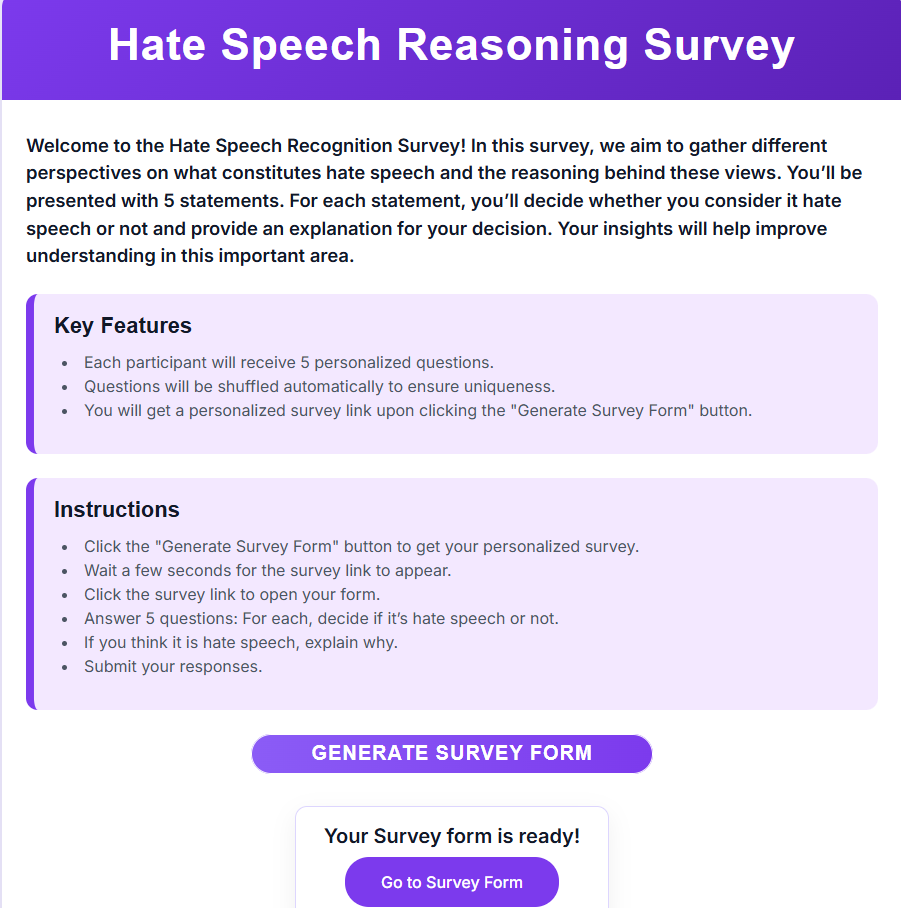
The web app URL, once deployed, became the single, unified link I shared with all potential participants. No more lists of 20 links! When they visited this one URL, they'd see a clean, welcoming page.

Screenshot of the web app user interface
The user-friendly web page participants used to get their unique survey link.

My page, which was for a project titled "Hate Speech Reasoning Survey," clearly laid out:

  • The Purpose: A brief welcome and explanation of the survey's aim.
  • Key Features: Highlighting benefits like receiving personalized questions and a unique link.
  • Clear Instructions: Guiding them step-by-step through the process.

The interaction was designed to be incredibly simple:

  • Participants would click a prominent button, something like "GENERATE SURVEY FORM."
  • This click was the trigger that called my lookForm() in the Apps Script running in the background.
  • The script did its work – selecting an available form and logging it.
  • Once complete, the webpage would then update by revealing a new button or link to show something like "Your Survey form is ready! Go to Survey Form."
  • Clicking this second button would then navigate them directly to their randomly assigned Google Form.

This two-step process (Generate -> Go to Form) ensured a smooth experience. It gave the script a moment to perform its necessary background tasks without the user noticing any delay, presenting them with their form link only when it was truly ready.

The Glorious Outcome: One Link to Rule Them All!

It worked beautifully! The system I cobbled together with Google Sheets and Apps Script solved all my initial problems:

  • One Link: We only had to distribute a single, simple web app URL.
  • True Random Assignment: The script ensured participants were directed to different forms randomly, from the pool of forms that still needed responses.
  • Automatic Count Tracking: The "Times Generated" column in my "BD Forms" sheet automatically kept a live tally. We could easily see when any particular form had reached its target number of responses.
  • Completely Budget-Friendly: The entire solution was built using tools that are free to use.

When a form hit its 3-5 response cap, the logic in my script would naturally stop offering that particular form, ensuring we achieved the distributed responses we needed without over-saturating any single form.

The Takeaway: Resourcefulness for the Win!

This little project was a powerful reminder that sometimes the most elegant and effective solutions don't require expensive, specialized software. Often, it's about creative thinking and resourcefully leveraging the powerful tools already at our disposal. Google Sheets and Google Apps Script are an incredibly potent combination for automating tasks, managing data, and solving problems that might seem overwhelmingly complex at first glance.

So, if you're ever faced with a similar data management, distribution, or automation challenge, don't be afraid to tinker with spreadsheets and a little bit of scripting. You might just surprise yourself with what you can build!

Have you ever used Google Sheets or Apps Script for an unconventional project, or solved a tricky problem with simple tools? I'd love to hear about your experiences in the comments below!